8 Hidden Visual Studio Features
Mastering Visual Studio shortcuts and hidden features

Visual Studio — Microsoft
Half of the story about having fun while coding — and slicing through it as if you were Neo in Matrix — is having a clear understanding of your favorite programming language. The other half tho is all about mastering your favorite coding environment.🚀
Therefore in an attempt to increase everyone’s experience and productivity — including developers — I’ll try to share here some of the hidden and often forgotten Visual Studio features I use most.
Hopefully, knowing these features will help save many hours of miserable labor work so that instead, we can all use our time better to build cool stuff!

Neo — Matrix Movie Scene
1. Generate classes with Paste as JSON feature
Writing classes based on JSON responses from APIs is an everyday task for most developers.
A tedious and boring task with high chances of getting at least one thing wrong if the response sample contains too many properties.
How about letting Visual Studio do the heavy work and generate classes from a JSON response? For that, copy the response and go to the menu Edit > Paste Special > Paste JSON as Classes option.
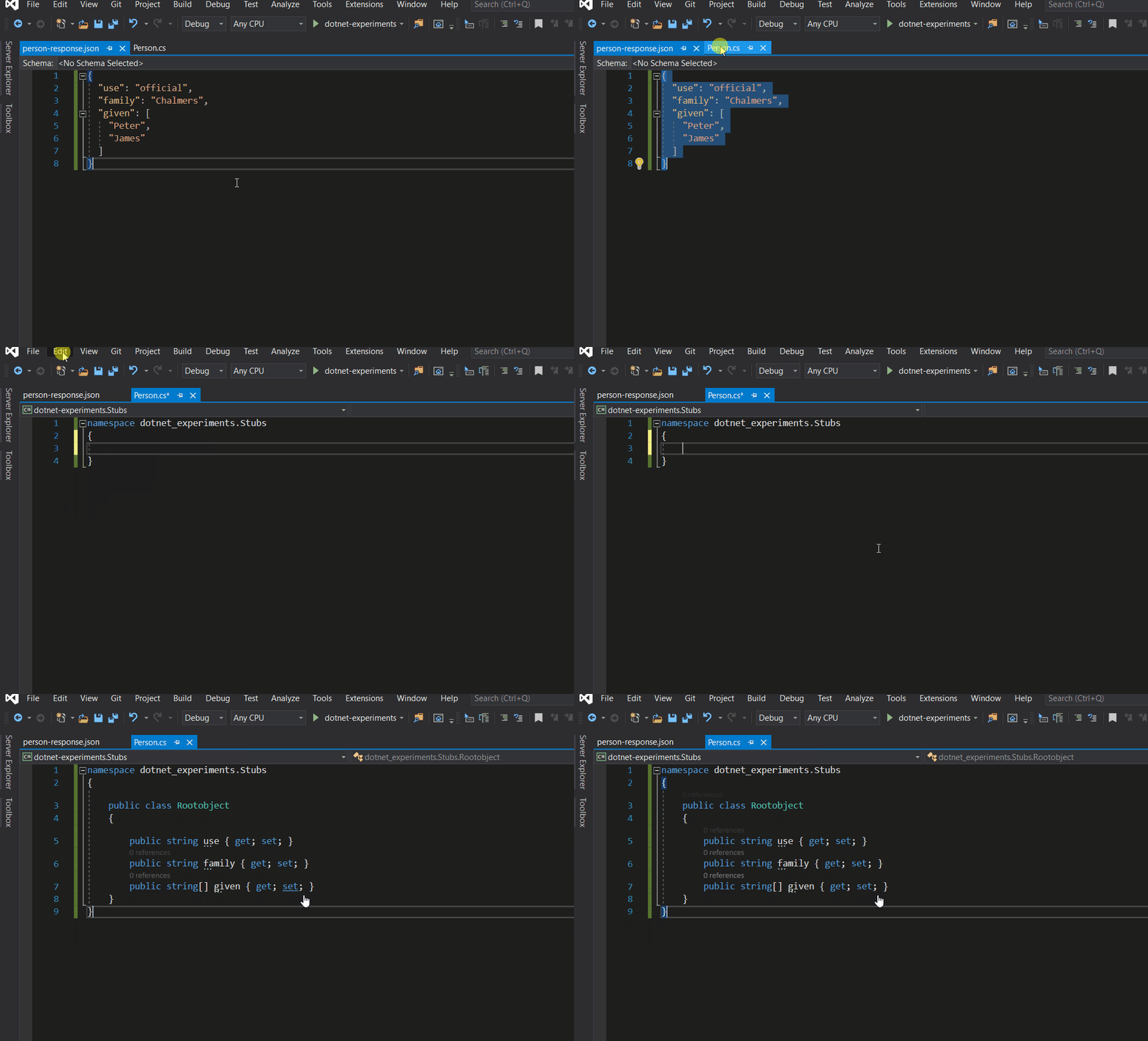
Pasting a JSON as a Class — Gif
2. Track active document in the solution
We often get lost when opening multiple files in various projects and/or jumping from method implementations here and there.
To help with that, Visual Studio can automatically sync the solution with the active document by clicking on the Sync with Active Document option in the top bar of the solution explorer:
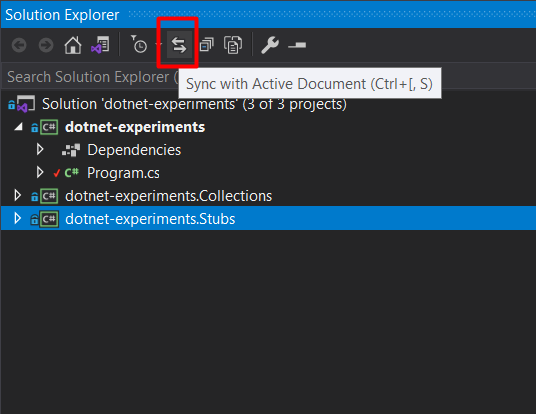
Solution Explorer screenshot
We can also have the feature enabled as Visual Studio’s default behavior by going to Tools > Options, selecting Projects and Solutions on the left**,** and then marking the option Track Active Item in Solution Explorer:
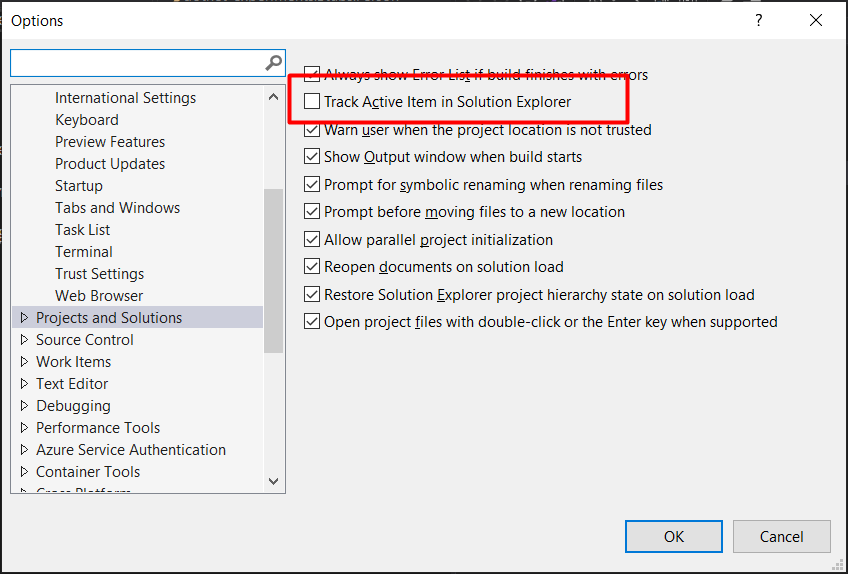
Projects and Solutions Options
3. Jump between references
Quickly jump between variables, method definitions, types, or anything else by hitting **ctrl** + **shift** + **Up/Down**:
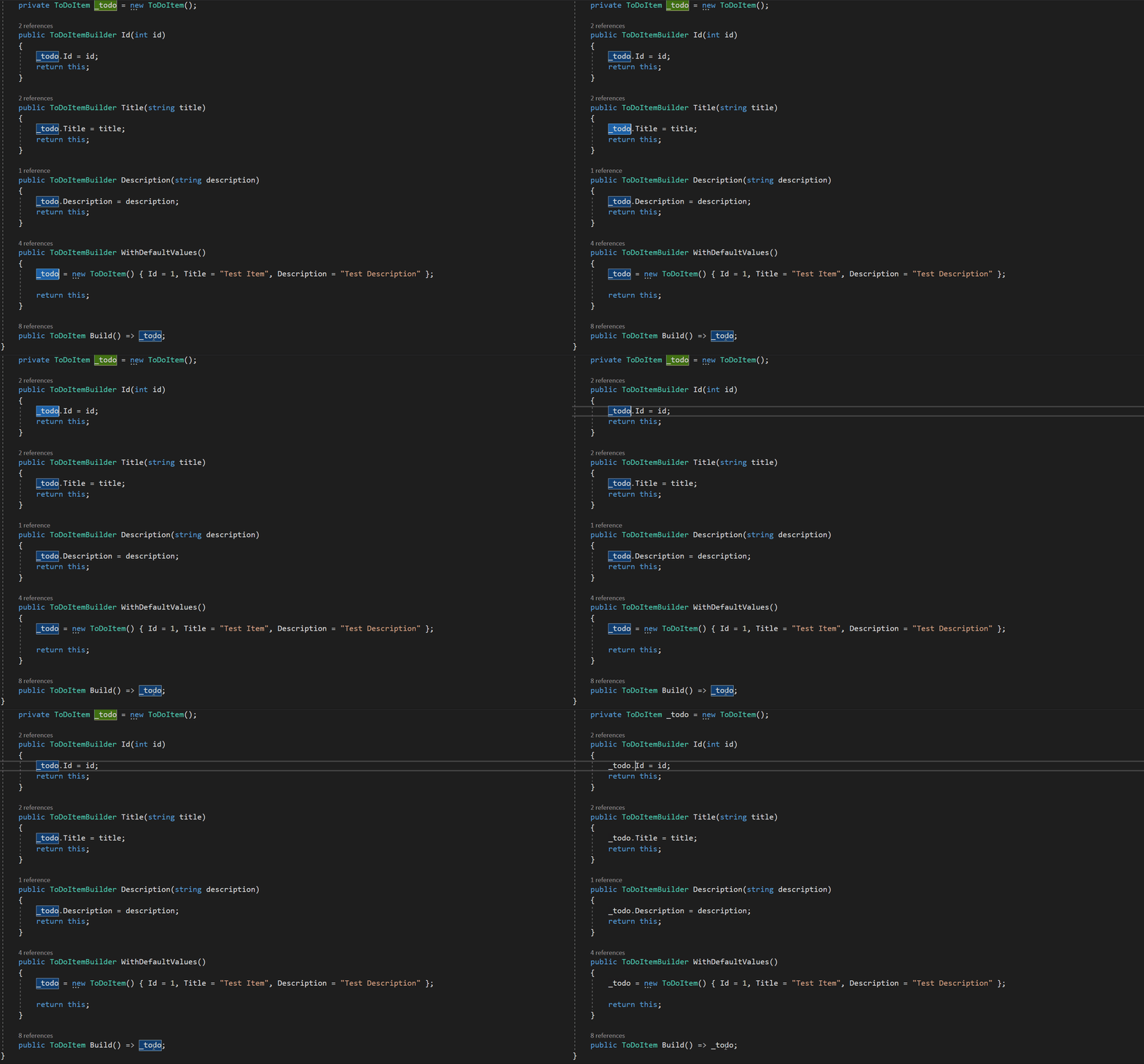
Jumping Between References
4. Open available MSDN docs of any .NET type or method
Don’t know how to use a framework method? Hit **f1** to open the available MSDN documentation on any .NET method, object, or property.
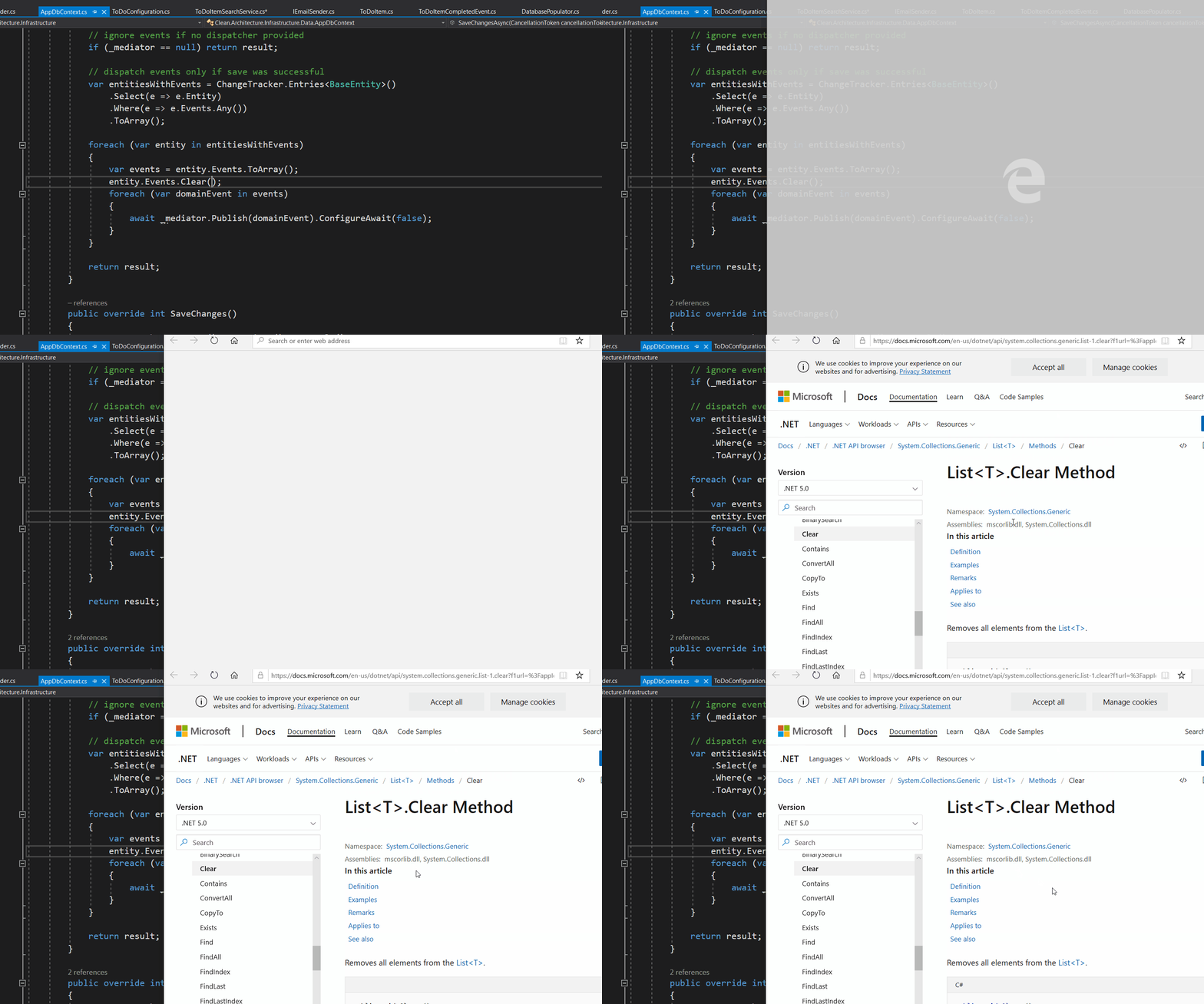
MSDN documentation page — Microsoft
5. Have multiple things in your clipboard
Copy multiple items with **ctrl** + **c** and hit **ctrl** + **shift** + **v**. A small pop-up window is displayed with all available items to be pasted:
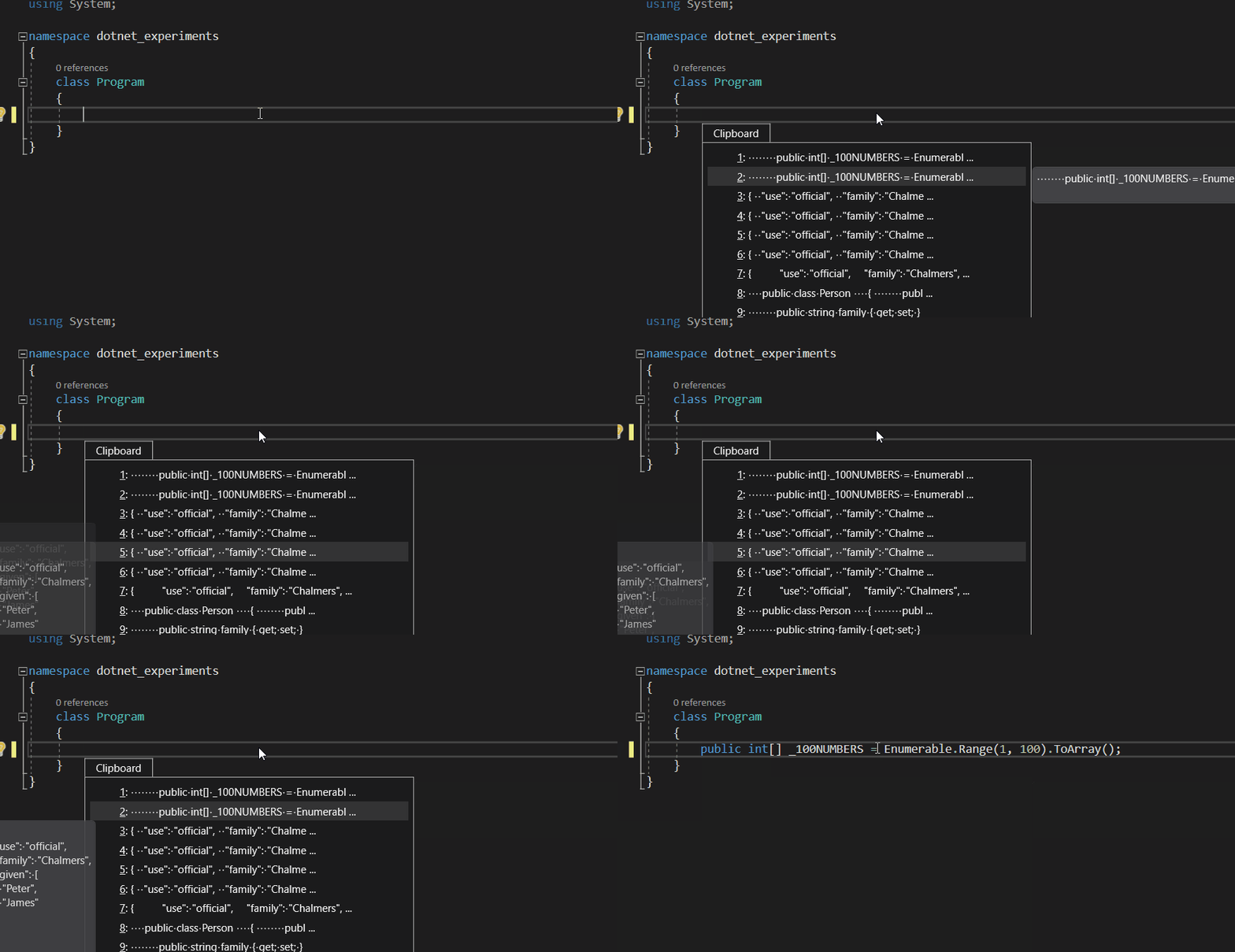
Visual Studio Clipboard Ring — Animated Gif
6. Shift + Alt + Arrow Keys for vertical selection
One of my favorites: Select multiple lines vertically and change them by hitting **shift** + **alt** + **Arrow Keys**:
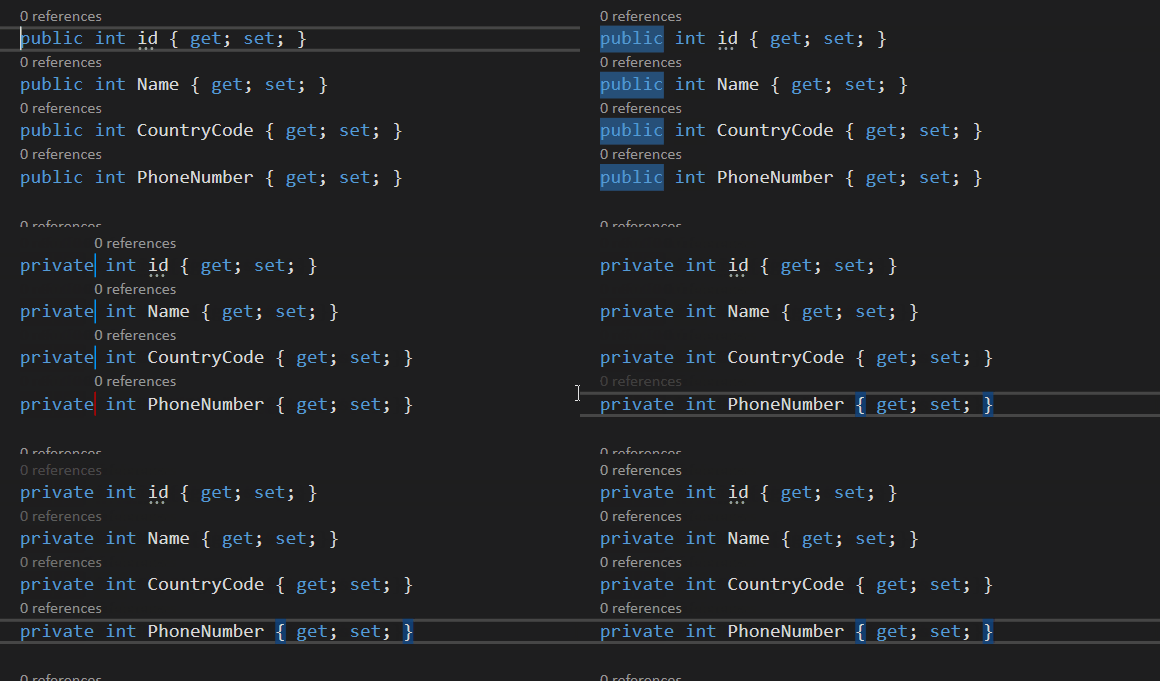
Vertical Selection — Animated Gif
7. Find things quickly with Go To All pop-up
Type **ctrl** + **,** or **ctrl** + **t** to open the Go To search pop-up and type the method, class name, or file you are looking for.
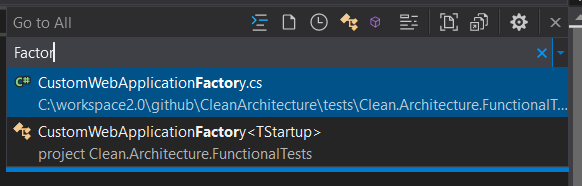
Go to All pop-up window
8. Display refactoring suggestions
**ctrl** + **.** will open a pop-up with refactoring suggestions and/or missing imports:
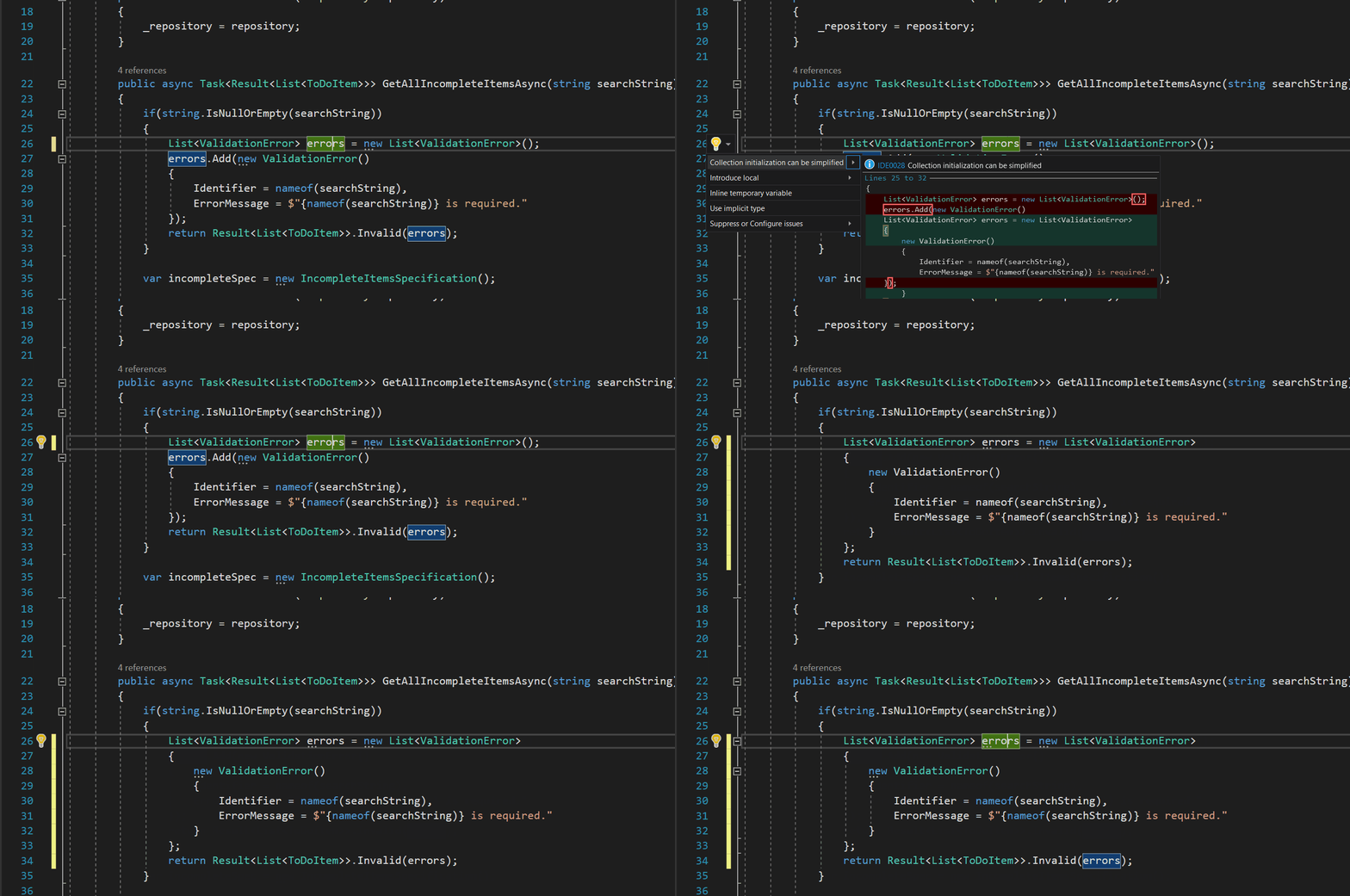
Refactoring suggestions pop-up
Other useful shortcuts
**ctrl**+**enter**: creates a new line above the current one**ctrl**+**c**(when no word is selected): Copies the entire line**shift**+**del**: Cuts the current line**ctrl**+**k**+**c**: Comment current or selected lines**ctrl**+**k**+**u**: Uncomment current or selected lines**ctrl**+**m**+**o**: Collapse to definitions**ctrl**+**r**+**g**: Remove and sort usings**ctrl**+**g**: Go to line number**ctrl**+**d**: Duplicate current line**ctrl**+**w**: Select word under the cursor**ctrl**+**f10**: Run app to cursor and break**ctrl**+**-**(Another favorite): Go back to the last position of the cursor
More articles on programming, productivity, and life
Browse all articles →Related articles

HTML to PDF API: Generate PDFs from HTML with PDF-API
How to generate PDF files from HTML content
Avoiding Array Pitfalls in C# .NET
Efficient usage of basic types in C#

8 Essential Tools for .NET Development
And for any rock star developer